Article
Canva PDF Print Export Guide For Professional Printing
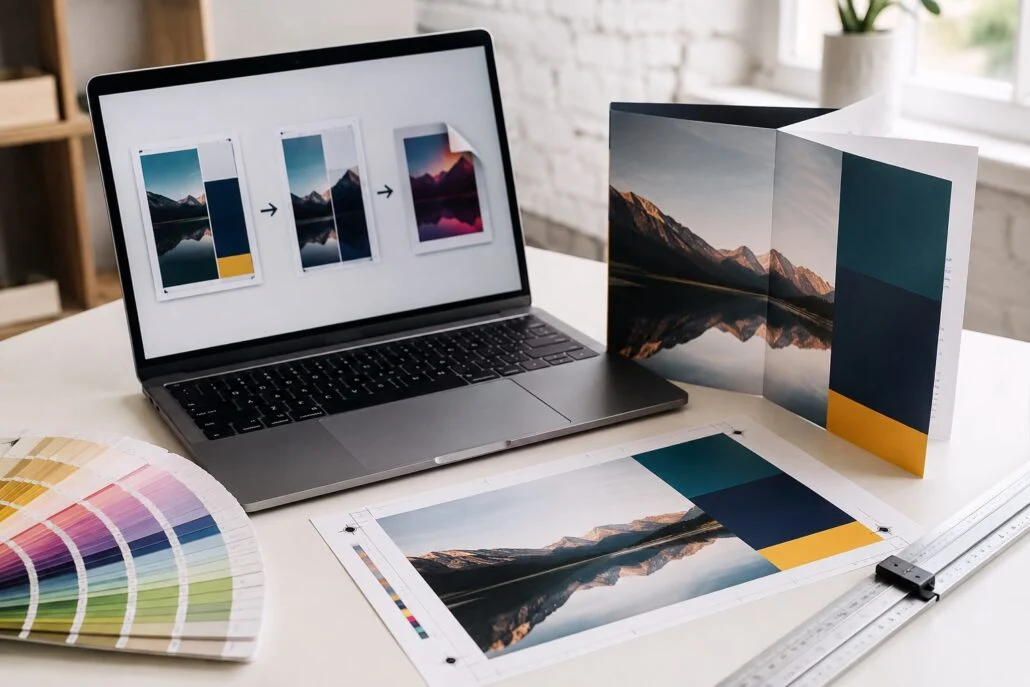
Direct answer: For most Canva print jobs, download the file as PDF Print, tick crop marks and bleed when available, then open the PDF before sending it to a printer. Check page size, page order, image quality, margins, QR codes and whether any full-bleed backgrounds extend past the trim edge.
The PDF export is the point where a Canva design becomes a production file. A design can look correct on screen but still create problems if it is exported at the wrong size, without bleed, with low-resolution images or in the wrong page order.
Recommended Canva PDF Print Workflow
- Confirm the finished print size before export.
- Turn on print bleed in Canva if the design runs to the edge.
- Check that backgrounds and images extend into the bleed area.
- Download as PDF Print.
- Enable crop marks and bleed if available.
- Open the downloaded PDF and review every page.
- Send the PDF to your printer with product, size, quantity and finishing notes.
PDF Print Compared With Other Canva Downloads
| Canva download type | Use for print? | Notes |
|---|---|---|
| PDF Print | Yes | Best starting point for most flyers, posters, leaflets, cards and simple booklets |
| PDF Standard | Usually no | Better for sharing and proofing than production |
| PNG | Sometimes | Can work for simple artwork, but text and file size may be less suitable |
| JPG | Only in limited cases | Compression can soften text, logos and fine detail |
What To Check In The Exported PDF
Do not assume the exported file is print-ready until you have opened it. Check the file at full size if possible. If the artwork includes multiple pages, confirm the order, orientation and whether blank pages are intentional.
- Finished size matches the product being ordered.
- Backgrounds extend into the bleed area where needed.
- Text and logos are away from the trim edge.
- Images look sharp enough for the final printed size.
- QR codes scan from the exported PDF.
- Colours are acceptable for print, especially brand colours and bright RGB shades.
When Canva PDFs Need Extra Care
Canva is strongest for straightforward marketing print such as flyers, posters, cards and social-to-print campaign material. More complex jobs need closer checking. Folded leaflets need panel positions and fold direction checked. Booklets need correct page count and page order. Large posters need enough image resolution for the final size.
If you are designing a 4 sheet poster, do not start with an A1 design and enlarge it at the end. A 4 sheet poster is 1016 × 1524mm, while A1 is 594 × 841mm. The size and ratio difference can affect cropping, image quality and composition.
What To Send With Your File
When sending a Canva PDF to Aspect Printing, include the product type, finished size, quantity, paper or material preference, finishing requirements and deadline. If the file is for an existing order, use upload your artwork. If you want us to check the specification first, request a quote.
Frequently Asked Questions
Is PDF Print better than PDF Standard in Canva?
Yes, PDF Print is normally the better Canva export option for professional print because it is intended for higher-quality output.
Do I always need crop marks?
Crop marks are useful when artwork has bleed or needs trimming. Some products and workflows may not require them, so follow the printer’s artwork guidance.
Can I send a Canva link instead of a PDF?
A Canva link can help with troubleshooting, but the production file should normally be a checked PDF Print export.
Sources And Checks
This workflow is based on Canva’s bleed and crop-mark guidance and Aspect Printing’s pre-press review process for print-ready PDFs.